
Getting Started
Download, install, and compress your first video in under a minute. Available for macOS, Windows, Intel, AMD, and Snapdragon.
System Requirements
- macOS: macOS 11+ (Apple Silicon and Intel)
- Windows: Windows 10+ (Intel, AMD, and Snapdragon)
Installation
macOS
- Download the installer (see below)
- Open the
.dmgfile - Drag JuicePress to your Applications folder
- Launch JuicePress from Applications
| Installer | SHA-256 |
|---|---|
| Universal (.dmg) — recommended | bfa784ec9a91a6d8ffa80c9e26499cad51fbf23f305e3ecfb6d75ee6d9e13760 |
| Apple Silicon (.dmg) | 472049a52be70fc611aabc09de0a936bde76178e923016e799cc43b5db6e9948 |
| Intel (.dmg) | af5f6477e4f5e3d576244fcf7b1b64b129de0e0269510b40b6f9e68c081e6a18 |
Windows
- Download the installer (see below)
- Run the installer and follow the prompts
- Launch JuicePress from the Start Menu
SmartScreen warning
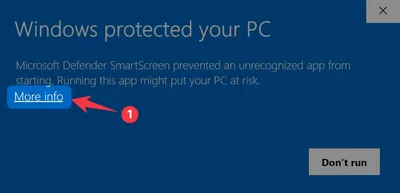
When you first run JuicePress on Windows, you may see a SmartScreen warning saying the app is "not commonly downloaded." This is normal for new software — it does not mean the app is unsafe.
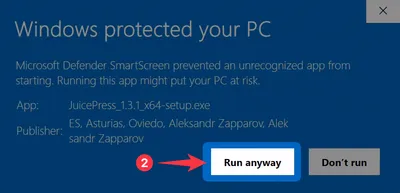
JuicePress is digitally signed, but SmartScreen builds trust based on download volume over time. To proceed:
-
Click "More info" on the warning dialog.
-
Click "Run anyway".
-
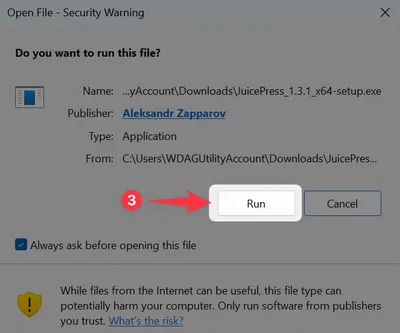
If Windows shows a second "Open File — Security Warning" dialog, click "Run" to confirm.


This warning will disappear as more users download and install JuicePress. Microsoft has confirmed this is expected behavior for new applications building reputation.
| Installer | SHA-256 |
|---|---|
| Intel & AMD (x64) | |
| Setup installer (.exe) | 4aec573729dafac6f4faa924fd2d1f1491c870231debf84220e3cd06bd5d6a2c |
| MSI package (.msi) | 2e3778b247b134d3e44f4bc9e68fea16198b3d695328d6b23b4d8b785cdd47e3 |
| Snapdragon (ARM64) | |
| Setup installer (.exe) | 2fa2c42fb1e92b5e1bf259a29abc05f38ad4d174405af8a272dfa8d5055b125b |
| MSI package (.msi) | 4234291995187a4edede5605f597d19bea37480d9b2d5981f03263257c3aec8c |
First Launch
On first launch, JuicePress will:
- Display a welcome screen
- Download required components (one-time, requires internet)
- Auto-detect your system language
- Open the main application window
Compressing Your First Video
- Drop a video onto the JuicePress window (or click to browse)
- Review the video info. JuicePress analyzes your file and shows resolution, duration, codec, bitrate, and file size
- Choose a preset. Pick one of the five built-in presets:
| Preset | Best For |
|---|---|
| Web | Website videos (balanced quality & size) |
| Video-GIF | Hero sections, silent loops |
| Smallest | Maximum compression |
| HQ | High quality delivery |
| Custom | Full manual control |
- Adjust settings (optional). Fine-tune resolution, CRF, frame rate, and audio
- Press Squeeze. Watch real-time progress with encoding speed and ETA
- Done! See the compression ratio and open the output file
Supported Formats
Input: MP4, MOV, AVI, MKV, WebM, GIF
Output: H.264 MP4 (maximum web compatibility)
Next Steps
- Compression Presets. Learn what each preset does
- Custom Settings. Take full control